← Back to blog
Guide
Grok Imagine: a living rock website hero
Turn one lifeless rock into a living ecosystem, animate it, and reveal it with the cursor in a Framer hero.
Daniil Filatov
· 7 min read
Watch the reel ↗
Thanks for checking out my workflow! This page contains every prompt used to turn one lifeless rock into an interactive website hero with a living world hidden inside it.
These prompts are cleaned up and organized from the exact workflow, so you can copy them directly and adapt the details to your own subject.
Try Grok Imagine for free here: Open Grok Imagine
How it works
Generate a clean base image.
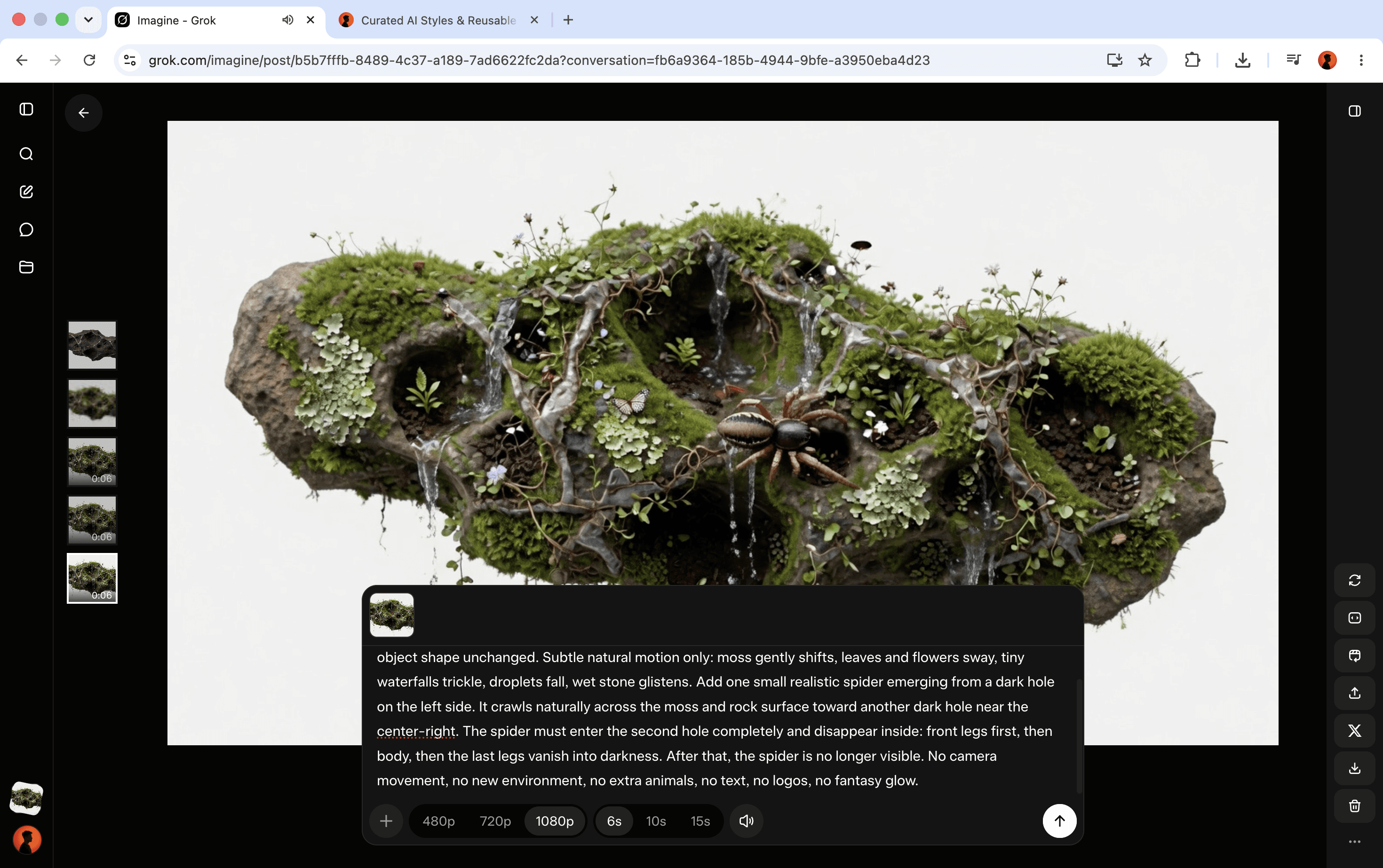
Edit that exact image into a living version.
Animate the living version with a locked camera.
Layer both assets and reveal the video with the cursor.
The most important detail is consistency. Keep the silhouette, framing, scale, and position identical across every asset.
01 — Generate the lifeless rock
Use this prompt to create the base asset:
Prompt 01
Highly realistic studio product render of a single floating raw meteoric ore fragment suspended in mid-air, isolated on a pure white #FFFFFF background. Long uneven horizontal silhouette, dark iron-rich stone matrix, rusty red-brown oxidation, dull nickel-silver seams, pitted surface, crater-like pores, chipped edges, fractured cavities, dusty matte finish, naturally damaged asymmetrical form. Clean controlled studio lighting, soft directional highlights revealing metallic pitting and rust deposits, subtle ambient occlusion on the object itself, premium raw material object study.
Copy includes the complete prompt.
Each prompt gives you four variations. Use my prompt as a starting point and test a few different rock shapes, then choose the silhouette with the most interesting cavities.
02 — Transform it into a living ecosystem
Take your strongest result into image editing, attach it as the reference, and use:
Prompt 02
Keep the original stone completely unchanged in shape, scale, position, lighting, and camera angle. Preserve the same floating object and clean white background. Do not replace the stone or alter its silhouette. Turn the stone into a highly detailed miniature nature island growing directly from the original rock surface. Add dense moss carpets, soft lichen patches, tiny roots wrapping around cracks, small vines, delicate wildflowers, tiny fern sprouts, damp soil pockets, and organic textures following the existing ridges and cavities of the stone. Create several tiny natural water streams flowing out of cracks and over small ledges, like miniature waterfalls. Add wet stone patches, fine droplets, subtle reflective moisture, and darker damp areas where the water touches the rock. Add small realistic insects and life details: tiny beetles crawling over moss, ants near the cracks, a ladybug on a flower, a small butterfly resting on the greenery. Keep everything very small, naturally scaled, and physically believable. The result should feel like the same raw stone has become a self-contained living ecosystem — lush, detailed, imperfect, organic, and realistic. Maintain the original studio composition, no new background.
Copy includes the complete prompt.
Want more prompts like this?
370+ tested prompts across 38 collections, plus the Prompt Builder to remix them.
Do not let the rock change position or shape. Even a small shift will break the cursor reveal later.
03 — Turn the living version into motion
Attach the living image and generate the video with this prompt:
Prompt 03
Animate this living rock while preserving the exact silhouette, scale, position, camera angle, framing, and pure white background. Keep the camera completely locked. Animate the environment, not the rock: let water flow through the cavities, droplets fall from the edges, leaves and grass move gently, flowers react to a soft breeze, butterfly wings flutter, and small insects move naturally. The rock must not morph, rotate, drift, zoom, resize, or change shape. Preserve all textures and lighting. Create calm, seamless living-world motion suitable for a looping website hero.
Copy includes the complete prompt.
Generate in 1080p Full HD. You can create clips up to 15 seconds, but six seconds is usually enough for a looping hero.
04 — Build the cursor reveal
Upload the original rock image and living video to your website builder (I am using Framer). Then use this prompt to create cursor reveal interaction.

Prompt 04
# Build a Spotlight Reveal code component Create a code component that stacks two content layers and reveals the top one through a soft-edged shape that follows the cursor. ## Layers - Two content slots the user fills on canvas: "Base" (bottom, always visible) and "Reveal" (top). - Both fill the component box completely and sit exactly on top of each other. Anything outside the component bounds is clipped. - The Reveal layer never captures pointer input. All cursor tracking happens on the container itself. - Default size 600 x 600, but it must resize freely to any width and height set on the canvas. ## The mask - The Reveal layer is visible only inside a shape centred on the cursor. Everywhere else the Base layer shows through. - Shape: Circle or Ellipse. Circle uses a single Radius. Ellipse uses Radius X and Radius Y — hide the Y field when Circle is selected. - Radius: 20 to 800, default 180. - Feather: 0 to 1, default 0.3. At 0 the edge is a hard cut. At 1 the shape fades out gradually all the way from its centre. Values in between control how far the solid core extends before the fade starts. - Reveal opacity: 0 to 100, default 100. Controls how strongly the Reveal layer shows inside the shape. - Invert: off by default. When on, the shape hides the Reveal layer instead — the Reveal layer covers everything except a hole under the cursor. ## Follow behaviour - Every frame the mask centre eases toward the real cursor position by a fraction of the remaining distance, so it trails behind rather than snapping. - Follow speed: 0.05 to 1, default 0.18. At 1 it locks to the cursor instantly. Low values give a heavy, laggy drag. - Cursor position is measured relative to the component's own top-left corner, so it stays correct at any position or scroll offset on the page. ## Reveal mode (dropdown) - Hover only (default): the spotlight exists only while the cursor is inside the component. On leave, the Reveal layer disappears entirely and pure Base is shown. The Reveal layer must never flash fully visible when the mask turns off. - Always on: the spotlight stays active. When the cursor leaves, it eases toward the resting position instead of vanishing. - Click to lock: follows the cursor normally, a click freezes the spotlight in place, another click resumes following. ## Resting position - Where the mask sits when no cursor is present: Centre (default), or a custom X and Y expressed as a percentage of the component width and height. ## Enter and exit transition - On cursor enter, the shape scales up from zero to full size over the Enter duration. On leave, it scales back down over the Exit duration. - Enter duration: 0 to 2000ms, default 250. Exit duration: 0 to 2000ms, default 350. Setting both to 0 gives instant on and off. ## Touch devices - Touch behaviour: Follow touch (default) so the mask tracks a finger drag, Fixed at the resting position, or Disabled so only the Base layer shows. ## Edge ring (optional) - Off by default. When enabled, draws a thin outline along the edge of the shape. Controls: colour, thickness 0 to 8 (default 1), opacity 0 to 100. ## Performance requirements - The continuous animation loop must pause when the component scrolls out of view using an IntersectionObserver, and restart when it comes back into view. - When the eased position has caught up to its target and nothing is animating, stop the loop entirely until the next cursor input, instead of running every frame forever. - Position updates must write directly to the element's style rather than triggering a full component re-render on every frame. ## Canvas behaviour - Expose every control above in the properties panel, grouped logically, with the stated defaults and ranges. - In the static canvas preview, render the mask at the resting position so the effect is visible without hovering.
Copy includes the complete prompt.
Base Asset = the lifeless rock image
Reveal Asset = the living ecosystem video
As you saw, I used Framer Agent to build the interactive component with controls for both assets. Paste my prompt into Agent, and it creates a reusable code component.

You’ll find it in the Assets panel on the left. Drag it onto your canvas, then resize and position it wherever you want.
05 — Turn it into a complete hero section
Once the interaction works, add your navigation, headline, and any supporting details.

Keep building with the Agent, or design the remaining sections yourself.
Quick checklist
The base image and video use the same dimensions.
The rock stays in the exact same position.
The camera remains completely locked.
The video loops without a visible jump.
The reveal edge feels soft, not blurry.
The interaction also works on touch devices.
FILATOV.DESIGN MEMBERSHIP
Get every prompt behind my work
370+ tested prompts across 38 collections, the Prompt Builder to remix them in seconds, and new drops every week.
$15/month. Cancel anytime.
MORE FROM THE BLOG

Build an interactive 3D bookshelf with Replit
A practical workflow from the first interaction to realistic books and a shelf full of design classics.

Grok Imagine + Grok Build: a cinematic racing website
Turn a crushed can into a Formula 1 car, chain the clips into one continuous film, and build a scroll-driven editorial website around it.

5 niche archives for design inspiration
Five online archives I use for visual research, moodboards and typography studies, far beyond the usual Pinterest search.

Motion graphics with Claude Opus 5.5
The prompts I used to create two branded motion-graphics films in Claude, without plugins or manual keyframes.